AI features
The AI assistant
Last updated 27 July 2026
The AI assistant is a chat panel that reads your live project and proposes changes you approve. Open it with the AI Chat button in the toolbar, describe what you want in plain English, and review each proposed change in a preview before anything touches your plan.
The assistant also answers questions about your schedule, runs what-if simulations, and opens the AI Project Wizard when you ask it to create a new project.
Open the assistant
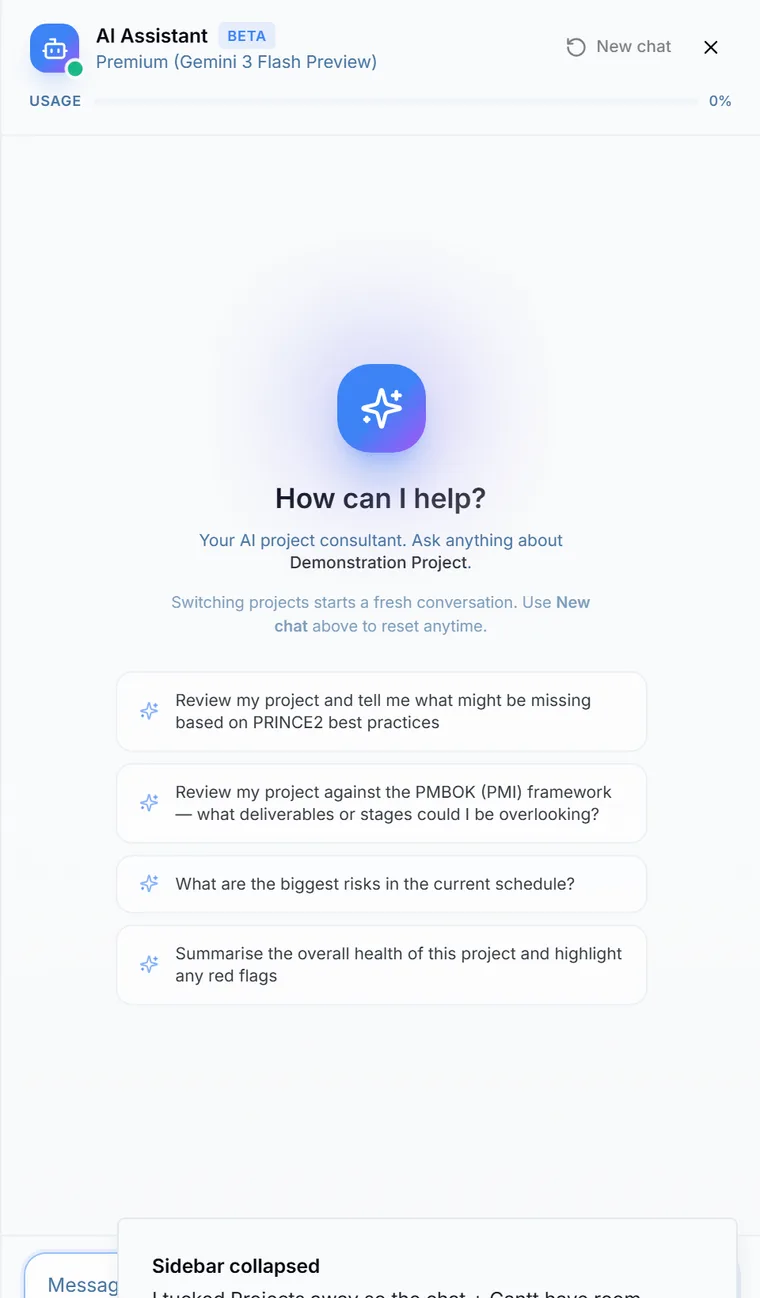
Click AI Chat in the toolbar. A panel slides in from the right, headed AI Assistant with a Beta badge, and the name of the model powering your session appears under the heading.
A fresh conversation opens with "How can I help?" and four suggested prompts matched to your role, such as a review of the project against PRINCE2 or a summary of the biggest risks. Clicking a prompt runs it immediately. You can also type your own message and press Enter to send it (Shift plus Enter adds a new line). The New chat button at the top clears the conversation, and switching projects starts a fresh one automatically.
The assistant needs a signed in account. Guests see a sign in prompt instead of the message box; see trying Ganttastic without an account for what guest mode does include.
What you can ask
In everyday terms, the assistant can:
- Add, update, and delete tasks (dates, duration, progress, notes, and predecessors).
- Add dependencies between tasks.
- Split a task into segments.
- Make project level updates.
- Carry out plans of up to 15 steps in one turn, executed in order. Bigger requests are split into batches, and the assistant confirms with you before continuing.
- Run read-only what-if simulations.
- Ask short clarifying questions with clickable options when your request is ambiguous. You can click an option, type a free text answer, or tell it to skip and use its best guess.
- Open the AI Project Wizard when you ask it to create a new project, with the name and brief already filled in.
Example prompts that work well:
- "Add a task called Budget approval starting 1 June, lasting 5 days."
- "Which tasks are overdue?"
- "Summarize the biggest risks on this project in PRINCE2 terms."
- "What happens if task 2.4 slips by a week?"
Preview before anything is applied
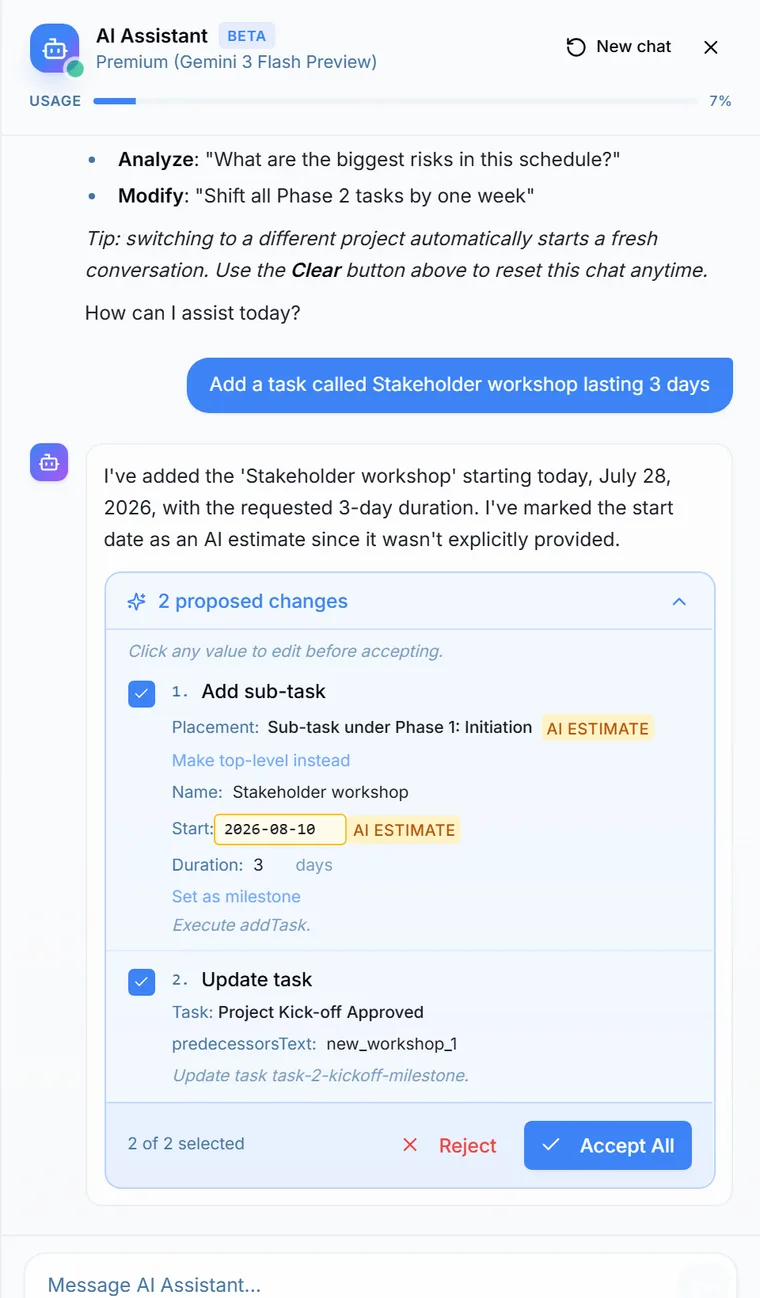
Any action that would change your project is held in a preview panel. Nothing runs until you approve it.
- For a single action the button reads Accept. For a plan of several steps it reads Accept All, or shows a count (for example Accept 3) when you have skipped some steps. Reject discards the whole proposal.
- Each step in a plan has its own include or skip toggle.
- You can edit proposed values inline before accepting.
- Fields the AI estimated rather than took from your message are highlighted so you can confirm or correct them. If a proposed task has no name, accepting is blocked until you type one.
- Proposed dates that land on a weekend or a holiday are adjusted to your work week automatically, with a visible note of the adjustment.
Every applied action gets an Undo button in the chat that restores the project to its state before that action. Ctrl+Z (Cmd+Z on Mac) undoes as usual, and Ctrl+Y or Cmd+Shift+Z redoes.
What the assistant will not do
- Assign owners to tasks. Chat actions carry no assignment field, so a request like "assign it to Sam" cannot be applied from chat. Ask the assistant to add the task, then set the owner yourself while working with tasks. The AI Project Wizard is the one AI surface that suggests owners.
- Compare progress against your baseline. Baseline data is not sent to the chat model. Use the tools described in baselines and variance instead.
- Move a whole phase with all its sub-tasks in one step. The assistant declines large restructures and offers to make the change in smaller steps.
AI usage and limits
All AI features in Ganttastic share one monthly token allowance per user. Both what you send and what the AI writes back count toward it.
| Plan | Monthly tokens per user |
|---|---|
| Team Member (free) | 10,000 |
| Project Coordinator | 100,000 |
| Project Manager | 200,000 |
| Enterprise | 300,000 |
Allowances reset on your billing anniversary. Free accounts reset on the day of the month the account was created.
The sidebar footer shows a compact AI meter on every signed in account: a percent used token bar, how many AI plans you have used this month, and a reset label such as "resets in 5 days". Inside the chat panel, a Usage bar sits in the header and a running token counter (used and limit) sits next to the message box. The meter can legitimately show more than 100%, because a request that starts under the cap is allowed to finish.
When you reach your cap, new messages are not processed. Instead you get an upgrade card telling you that you have reached your monthly AI capacity and the date your usage resets. Starting a new wizard generation is blocked earlier, from 90% of the allowance.
Frequently asked questions
Easier to try than to read about.
Open Ganttastic in your browser and follow along. No account needed.