Plan and schedule
Import a project
Last updated 27 July 2026
Click Import in the sidebar to bring an existing plan into Ganttastic. You can import Microsoft Project files (.mpp or XML), spreadsheet exports (CSV or Excel) from tools like Asana, Monday.com, and ClickUp, and .gwise backup files made by Ganttastic itself. Each import creates a new project, so your current projects are never overwritten.
Apart from .gwise restores, every import ends at a review screen where you rename the project and untick anything you do not want, so nothing is created until you have checked it.
Supported file types
Click Import in the sidebar and pick a file. Ganttastic detects the format for you.
| File | Comes from | What happens |
|---|---|---|
| .gwise or .json | A Ganttastic export | Imports directly as a new project |
| .xml | Microsoft Project (XML format) | Goes straight to the review screen |
| .mpp | Microsoft Project | Converted for you, then reviewed (sign in required) |
| .csv or .xlsx | Asana, Monday.com, ClickUp, or any spreadsheet | Opens the column mapping step |
Importing is open to everyone, including guests exploring Ganttastic (see try Ganttastic without an account). The one exception is .mpp conversion, which needs a signed in account.
Restore a .gwise backup
A .gwise file is a complete snapshot exported by Ganttastic. Import one and it becomes a new project with all tasks, dependencies, resources, and settings preserved. Nothing is merged and nothing is overwritten, which makes this the safe way to restore an earlier state or move a project between accounts.
To create these files in the first place, see export your project.
Import from Microsoft Project
Upload an .xml file saved from Microsoft Project and Ganttastic parses it directly in your browser, then takes you straight to the review screen. No column mapping is needed: dates, durations, progress, dependencies (including their types and lag), and resource assignments are all read from the file.
Upload a .mpp file and Ganttastic first converts it to the XML format on its servers, then continues exactly as above. You need to be signed in, and files can be up to 25 MB. If the conversion is unavailable or you are not signed in, the wizard shows short instructions instead: open your plan in Microsoft Project, choose Save As, pick XML Format (*.xml) as the file type, and upload that file.
Two details are worth knowing. Tasks with zero duration are imported as milestones, matching how Microsoft Project defines them. And because Ganttastic supports tasks with one level of sub-tasks, anything nested deeper in your Project plan is flattened under its top level phase, with the intermediate grouping kept in the task name. A warning on the review screen tells you when this has happened.
Import from Asana, Monday.com, ClickUp, or a spreadsheet
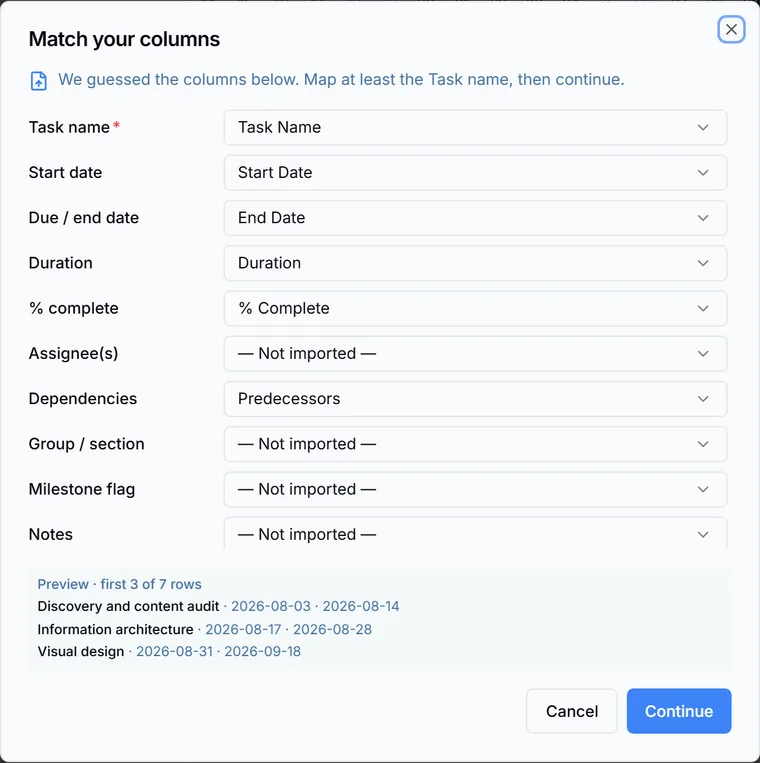
CSV and Excel files open the Match your columns step. Ganttastic recognizes the default exports of Asana, ClickUp, and Monday.com from their column headers and fills the mapping in for you. For any other spreadsheet it makes a guess from the header names. Adjust anything that looks off, then click Continue.
Only Task name is required. The other fields you can map are Start date, Due / end date, Duration, % complete, Assignee(s), Dependencies, Group / section, Milestone flag, Notes, Status, and Source ID. Leave a field unmapped if your file has no matching column. Once a task name column is chosen, a preview shows the first rows so you can check the mapping against real data.
- A Group / section value becomes a parent phase, and the rows that share it become its sub-tasks (one level, matching how tasks work in Ganttastic).
- Dependencies are matched to other rows by task name and imported as Finish-to-Start links. References that cannot be matched are skipped with a warning rather than creating broken links.
- Rows marked with a Milestone flag import as milestones with zero duration.
- Assignee(s) become resources on the new project.
Review before anything is created
Every wizard import ends at the Review imported plan screen. At this point nothing has been created in your account yet.
- Rename the project if you want. The field starts with a name suggested by the file.
- Read any warnings shown at the top, for example dependency references that were skipped.
- Untick any tasks you do not want to bring across. Unticking a phase also unticks its sub-tasks, and milestones are marked with a diamond.
- Click the import button, which shows the count, for example "Import 12 tasks".
A "Project imported" toast confirms the new project, and it opens like any other project in your sidebar. From there, continue as you would with any plan: see your first project.
Imported projects count toward your plan limits
An import creates a normal project through the same path as creating one by hand, so it counts against the active project limit on your plan. If you are already at the limit, the import button on the review screen is disabled and a message explains that you have reached your active project limit.
To make room, complete or delete a project you no longer need, or move up a tier. Limits for each plan are listed in plans and pricing.
Easier to try than to read about.
Open Ganttastic in your browser and follow along. No account needed.