Plan and schedule
Dependencies, milestones, and auto-scheduling
Last updated 27 July 2026
Dependencies link tasks so one cannot start or finish until another does. Ganttastic supports all four dependency types (FS, SS, FF, SF) with optional lag or lead in working days. When a predecessor moves, dependent tasks reschedule automatically, and milestones mark the fixed points your plan builds toward.
Most people link tasks by dragging between bars or picking from a dialog; you can also type a short expression directly. This page covers each method, lag and lead, what happens downstream when dates change, and how to mark key events with milestones.
The four dependency types
Every link between two tasks has a type. The type says which dates are connected: the predecessor is the task that comes first in the logic, and the successor is the task that waits on it.
| Type | Name | Meaning |
|---|---|---|
FS | Finish to start | The successor cannot start until the predecessor finishes. This is the default and by far the most common: build, then test. |
SS | Start to start | The successor cannot start until the predecessor starts. Useful when two streams of work should begin together. |
FF | Finish to finish | The successor cannot finish until the predecessor finishes. Useful when work must wrap up together, like writing and editing. |
SF | Start to finish | The successor cannot finish until the predecessor starts. Rarely used in practice. |
Add a dependency
Ganttastic gives you several ways to link tasks. Pick whichever fits how you work; you never need to memorize syntax.
- Drag on the chart. Hover over a task bar and a small link handle appears at its right edge. Drag a line from the handle to another task's bar to link them with a finish to start dependency.
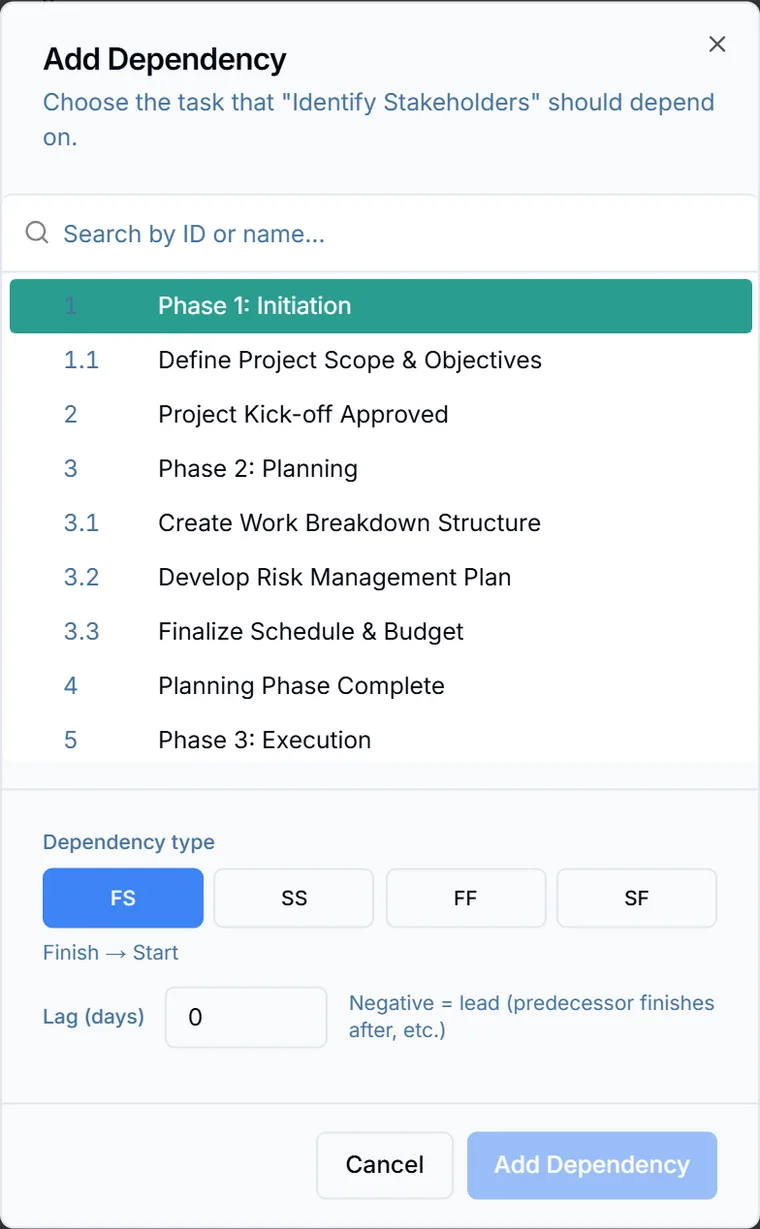
- Use the dialog. Right-click a task on the chart or in List view, then pick Add Dependency... from the Manage Dependencies submenu. The dialog has a searchable task list, a Dependency type selector for FS, SS, FF, or SF, and a Lag (days) field.
- Type in List view. Click the Predecessors cell of the dependent task and enter the expression directly.
- Type in Task Details. Right-click the task, choose Edit Task, and edit the Dependencies field on the Dependencies & Notes tab.
Sub-tasks can be linked too. Use a sub-task's display ID, such as 1.2, anywhere a task ID is accepted. See working with tasks for how tasks and sub-tasks are numbered.
Once two tasks are linked, a thin arrow runs from the predecessor to the successor on the chart.
Lag and lead
Lag adds a wait after the linking condition is met. Lead does the opposite and starts the successor early, overlapping the two tasks. Both are counted in working days, so weekends outside your work week and any custom holidays are skipped. You set both on the Work Calendar tab of Project Settings (see settings).
In the Add Dependency dialog, enter a positive number in Lag (days) for lag, or a negative number for lead.
When you type dependencies by hand, or read them in the Predecessors column, they use a compact syntax: the predecessor's ID, a colon, the type, and an optional lag.
2:FS+2reads as: depends on task 2, finish to start, then wait 2 working days.2:FS-1reads as: depends on task 2, finish to start, but start 1 working day early.3:SS+1reads as: start 1 working day after task 3 starts.2on its own is a plain finish to start dependency on task 2 with no lag.- Separate multiple dependencies with commas, for example
2, 3:SS+1.
Change or remove a dependency
A task's dependencies are stored as one list, and you can edit that list wherever it appears.
- Right-click the dependent task and open Manage Dependencies. Each existing link is listed as a Remove entry named after its predecessor; click one to delete that link.
- In List view, click the Predecessors cell and edit or delete the expression.
- In Task Details, edit the Dependencies field on the Dependencies & Notes tab.
To change a link's type or lag, edit its expression directly, or remove the link and add it again through the dialog with the new settings.
How auto-scheduling works
When a predecessor's dates change, every task that depends on it reschedules automatically, and the change cascades down the whole chain. A one week slip at the top pushes everything downstream by the right amount. The cascade honors each link's dependency type and lag, your project's work week, and any custom holidays, so rescheduled tasks always land on working days.
Scheduling works in days. Durations are entered in days and there is no working hours setting; Ganttastic schedules whole days, not parts of a day on a clock.
After a cascade runs, a toast summarizes what moved and offers an Undo cascade action. Click it to put every affected task back where it was; a confirmation appears once the cascade is undone.
Milestones
A milestone is a task with zero duration that marks a fixed point in the plan, such as a kickoff, a client approval, a delivery date, or a launch. Milestones render as diamonds on the chart instead of bars.
There are two ways to create one:
- Right-click a task on the chart or in List view and choose Convert to Milestone. On an existing milestone the same menu item reads Convert to Task.
- Right-click a task, choose Edit Task to open Task Details, and check the Milestone checkbox on the General tab.
A few behaviors worth knowing:
- Converting a task sets its duration to zero. Unchecking the Milestone checkbox turns it back into a task with a duration of 1 day.
- Milestones cannot be dragged or resized on the chart. Change their date in Task Details.
- Milestones are never counted in progress calculations. They are markers, not work.
- A parent task that has sub-tasks cannot become a milestone; the checkbox is disabled for it.
- Milestones are included when you capture a baseline.
The AI project wizard adds milestones at phase gates automatically when it generates a plan, along with the dependencies between tasks.
Easier to try than to read about.
Open Ganttastic in your browser and follow along. No account needed.