Get started
Try Ganttastic without an account
Last updated 27 July 2026
You can use Ganttastic without creating an account. Click Try free on ganttastic.com and the app opens in guest mode with a sample project ready to look at. Anything you build is saved in your browser between visits, and your guest projects are imported into your account if you later sign up.
Guest mode is built for evaluation. You get real editing on a small number of projects, but sharing, AI features, and some exports need an account. When you are ready, signing up takes about a minute; see create your account.
Start in guest mode
- Open ganttastic.com and click Try free. You can also go straight to ganttastic.com/app.
- Ganttastic starts a guest session automatically. No form, no email address, nothing to install.
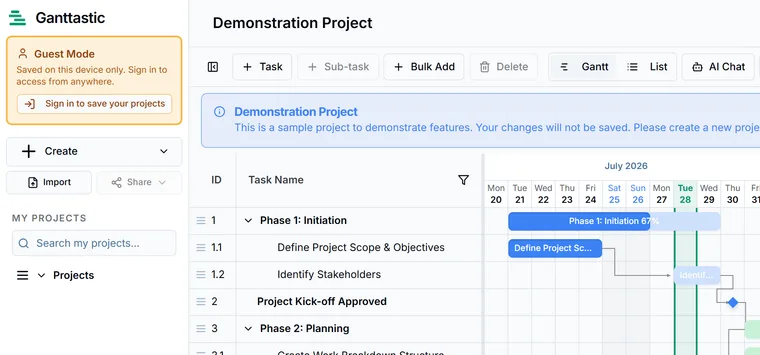
- You land in the app with the Demonstration Project open, a small sample plan you can start editing right away.
A banner across the top of the app reminds you that you are not signed in and that your work is saved in this browser only, with Sign up and Sign in buttons. You can dismiss it, and a reminder toast also appears the first time you edit something.
What you can do as a guest
Guest mode is the real app with real editing, inside some honest limits:
| Area | In guest mode |
|---|---|
| Projects | Create and edit up to 2 of your own, plus the sample |
| Tasks | Full editing, including sub-tasks, dependencies, and drag-and-drop rescheduling |
| Views | Current Week and Current Month timeline views |
| Exports | PNG and PDF; Excel and .gwise are not available to guests |
| Sharing | Not available; inviting collaborators requires an account |
| AI features | Not available; the AI wizard shows a sign up prompt instead |
Export formats are covered in export your project, and the full tier comparison lives in plans and pricing.
Is your guest work saved?
Yes, within one browser. Guest projects are stored in your browser's local storage on your device. Close the tab, restart the computer, come back next week: your projects are still there, as long as you return in the same browser on the same device.
Your guest work is lost if:
- you clear the browser's site data or cookies for ganttastic.com,
- you worked in a private or incognito window and closed it, or
- you open Ganttastic in a different browser or on a different device (guest data never leaves the machine it was created on).
The Demonstration Project
Every guest session starts with the Demonstration Project, a prebuilt sample plan with tasks, sub-tasks, and dependencies, so you can see a working schedule before creating your own. As a guest you can edit it freely, and your changes stay in your browser like the rest of your guest work. The sample cannot be shared.
After you create an account, the sample behaves differently. If you own no projects yet, Ganttastic shows the Demonstration Project again as a read-only sample. Your first edit opens the Save a copy to keep your changes? dialog; click Save a copy and your edit lands in a real project named Demonstration Project (copy) that belongs to you. You can also dismiss the sample from the sidebar once you no longer need it.
Keep your work by signing up
- Click Sign up in the guest banner (or Sign in if you already have an account).
- Create the account with email or Google. The full walkthrough is in create your account.
- Projects you created as a guest are imported into the new account automatically and start syncing to the cloud.
Two things do not carry over: edits made to the Demonstration Project sample (only projects you created yourself migrate) and anything left in a different browser. Sign up in the same browser where you did the work.
Frequently asked questions
Easier to try than to read about.
Open Ganttastic in your browser and follow along. No account needed.