Account and billing
Project and app settings
Last updated 27 July 2026
Ganttastic has two settings layers. Project settings (the three dot menu beside a project name, then Settings) control that project's work calendar, date format, and resources. App settings (your avatar, then App Settings) are personal preferences such as theme and display density that follow your account everywhere.
This page covers both: first the Project Settings dialog tab by tab, then the Application Settings dialog.
Two kinds of settings
Project settings live with each project and affect everyone who opens it: the work calendar, date format, Gantt bar labels, and the resource list. App settings are yours alone: theme, contrast, clock format, and density. App settings are stored on your account, so they apply on every device you sign in from.
Open project settings
- In the sidebar, click the ... menu beside the project name, or right-click the project row.
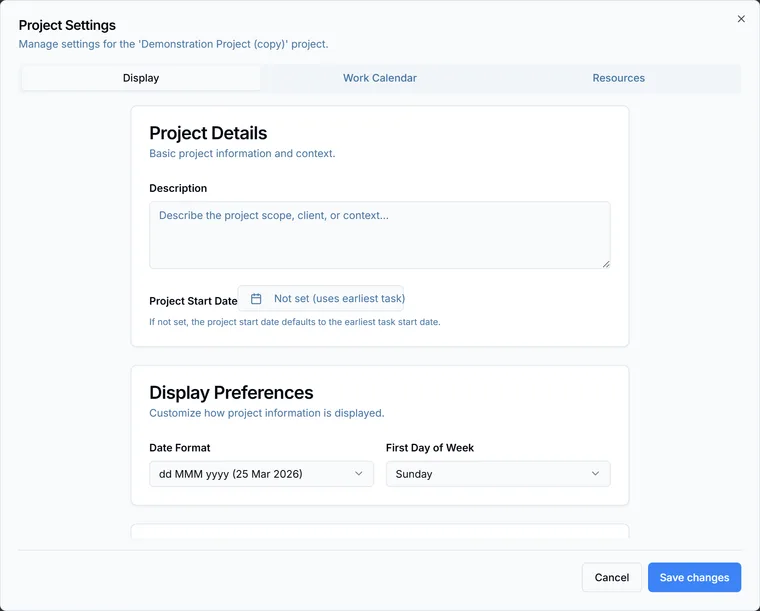
- Choose Settings. The Project Settings dialog opens with three tabs: Display, Work Calendar, and Resources.
If you only have viewer access, the menu item reads Settings (View Only) and the dialog opens with every control disabled.
Display tab
The Display tab opens by default and has three groups:
- Project Details: a free form Description and a Project Start Date picker. Left unset, the picker shows "Not set (uses earliest task)" and the project starts at the earliest task's start date.
- Display Preferences: Date Format has four options (dd MMM yyyy, the default, which renders as 25 Mar 2026; MM/dd/yyyy; dd/MM/yyyy; yyyy-MM-dd). The chosen format applies across the app and carries into exports and AI generated output. First Day of Week can be any of the seven weekdays; the default is Sunday.
- Gantt Bar Labels: two switches, Show Task Names on Gantt Bar (off by default) and Show Progress on Gantt Bar (on by default).
Work Calendar tab
The Work Calendar tab controls when work can be scheduled. Every duration calculation, dependency cascade, and AI proposed date respects it; see dependencies, milestones, and auto-scheduling.
- Work Schedule: tick the working days of the week (Monday to Friday by default) and define working hours with Add Time Block. Multiple blocks are allowed; new projects start with two, 08:00 to 12:00 and 13:00 to 17:00, which models a split shift.
- Holidays & Non-Working Days: click Add Holiday to block out a single date or a range. Tasks are not scheduled on those dates. If you set an end date earlier than the start date, the dialog corrects the other date to match.
Resources tab
The Resources tab holds the project's resource library: the people and teams you can assign to tasks.
- Click Add Resource to add a row.
- Enter a Name, pick a Type (Internal or External are the only options), and optionally fill in Role and Company / Department.
- Remove a row with the X button beside it.
Resources belong to the project, not your account, so add the same person again in each project that needs them. Once saved, they appear in the resource picker of the Task Details panel; see working with tasks.
Save your changes
Nothing commits until you click Save changes at the bottom of the dialog. One click saves your edits from all three tabs at once. Click Cancel or close the dialog to discard them.
App settings
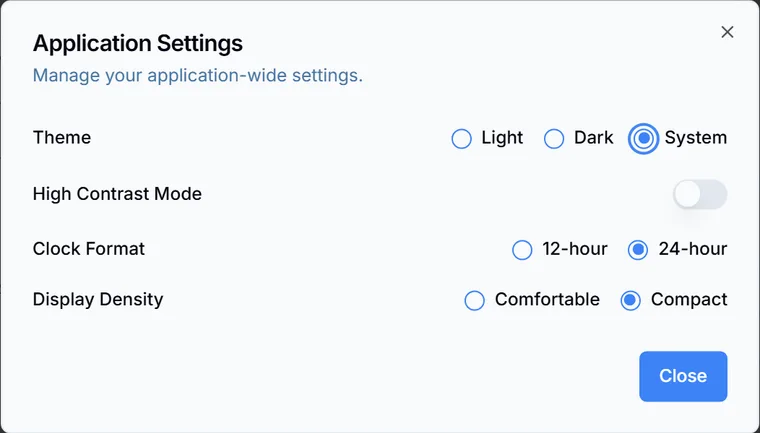
App settings are personal preferences stored on your account. To open them, click your avatar initial in the sidebar and choose App Settings. The Application Settings dialog appears with four controls:
| Setting | Options | Default |
|---|---|---|
| Theme | Light, Dark, or System (follows your OS) | System |
| High Contrast Mode | On or off | Off |
| Clock Format | 12-hour or 24-hour | 24-hour |
| Display Density | Comfortable or Compact | Compact |
Changes apply the moment you change a control; Close only dismisses the dialog. Because the settings are stored on your profile, they sync to any device you sign in from.
Easier to try than to read about.
Open Ganttastic in your browser and follow along. No account needed.