Plan and schedule
Baselines and variance
Last updated 27 July 2026
A baseline is a frozen copy of every task's start and end dates, captured at a moment you choose. Click Set Baseline in the toolbar to capture one, then compare the gray baseline bars with the live schedule to see exactly which tasks are running late or early, and by how many days.
Baselines are captured by the project owner and stored one at a time. This page covers capturing, re-baselining, the show and hide toggle, and how to read variance both visually and in exact working days.
What a baseline is
A baseline is a snapshot of the schedule: the start and end dates of every task and sub-task, plus the project's overall start and end, saved together with the date and time of capture. The live plan keeps changing as work happens; the baseline does not. That contrast is what makes honest tracking possible, because you compare what is happening against what was committed.
A project holds one baseline at a time. Capturing a new one overwrites the old one, and there is no baseline version history inside the project.
Capture a baseline
Only the project owner can capture a baseline. For editors the button is disabled, with a tooltip that reads "Only the project owner can set a baseline".
- Finish any date changes you want the baseline to reflect. The usual moment is right after the plan is approved.
- Click Set Baseline in the toolbar.
The capture happens immediately; there is no confirmation step the first time. A Baseline Set toast confirms that the current schedule was captured, and the capture date and time are stored with the project.
Re-baseline after a plan change
Once a baseline exists, the toolbar button label changes from Set Baseline to Re-baseline. Clicking it opens a confirmation dialog titled Re-baseline Schedule, which shows the exact date and time the previous baseline was captured and warns that overwriting it cannot be undone. Click Re-baseline to confirm, or Cancel to keep the current baseline. A Baseline Updated toast confirms the new capture.
Show or hide the baseline
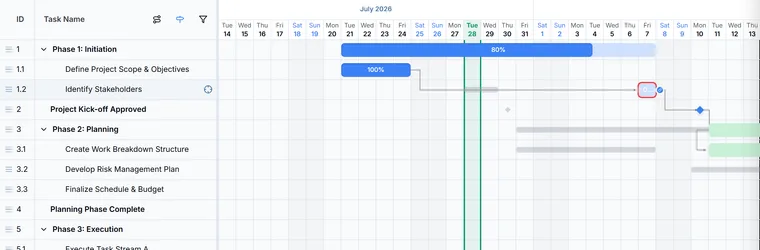
Once a baseline exists, gray baseline bars draw behind each task's live bar, and a toggle button with a signpost icon appears in the Gantt header. Its tooltip reads Show Baseline or Hide Baseline depending on the current state. The baseline is visible by default after capture, and the toggle only appears once a baseline has been set.
Baseline milestones render as smaller gray diamonds behind the live diamond.
Read variance
With the baseline visible, each task shows two bars: the gray baseline bar behind and the live bar in front. Read them together.
- Live bar sits to the right of the baseline bar: the task is running later than planned.
- Live bar sits to the left: the task is running earlier than planned.
- Live bar is longer: the work has stretched.
- Live bar is shorter: the work has been compressed.
For exact numbers, hover over any task. When a baseline is visible, the tooltip reports start and end variance in working days, for example "Start: 3 days late" or "End: 2 days early". Late variance shows in red and early variance in green. The day counts respect your project's Work Calendar, so weekends and custom holidays are not counted.
Baseline habits that keep you honest
- Capture the baseline the moment the plan is approved, before work starts. A baseline set mid-project has already absorbed the early slip.
- Keep the baseline visible in status meetings, so the discussion compares reality against the commitment rather than against last week's revision.
- Re-baseline rarely, and only for genuine plan changes such as an approved scope change or a formally agreed new end date. If you re-baseline every week, variance always looks clean and the baseline stops telling you anything.
Easier to try than to read about.
Open Ganttastic in your browser and follow along. No account needed.