Organize and share
Export your project
Last updated 27 July 2026
Every export in Ganttastic starts from the Export button in the toolbar. All plans can save the chart as a PNG image or a PDF document. Project Coordinator and above can also download a .gwise backup of the whole project, and Project Manager and above can export an Excel workbook with the task list and a timeline grid.
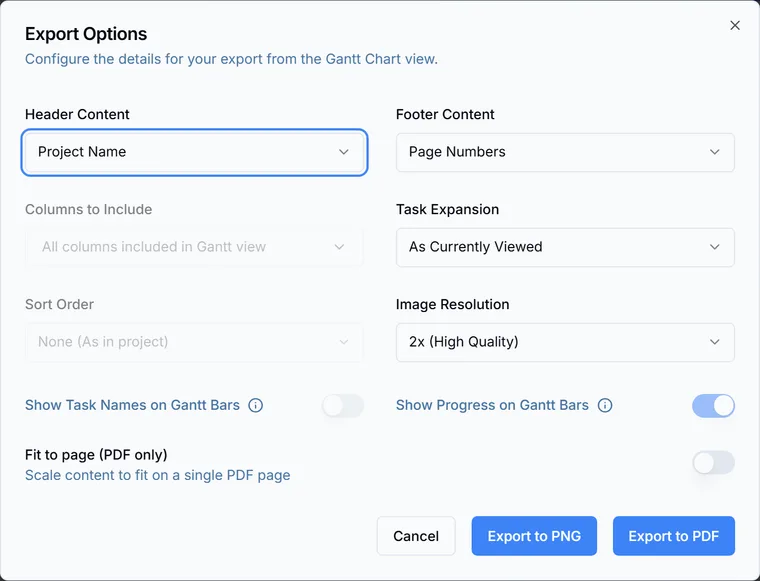
PNG and PDF exports open an options dialog first so you can control how the chart looks. The .gwise and Excel exports skip the dialog and download immediately.
The Export menu and what each format is for
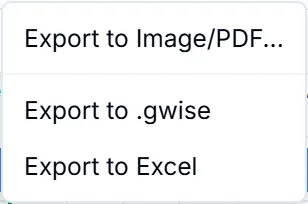
Click Export in the toolbar to open the export menu. It has three entries: Export to Image/PDF..., Export to .gwise, and Export to Excel.
| Menu item | You get | Best for | Plan |
|---|---|---|---|
| Export to Image/PDF... | A PNG image or a PDF document | Status updates and slide decks | All plans |
| Export to .gwise | A complete project backup file | Backups and moving a project to another account | Project Coordinator and above |
| Export to Excel | An .xlsx workbook | Working with the plan in a spreadsheet | Project Manager and above |
Export a PNG image or a PDF
PNG and PDF exports capture the chart the way you have it set up, so arrange the view first.
- Choose the timeline range with the View dropdown in the toolbar, for example Current Week or Current Month. The export covers the range you are viewing. If your whole project sits outside the current week or month, those views show the project's own first week or month instead of an empty chart. See views and navigation for the ranges your plan includes.
- Click Export and choose Export to Image/PDF.... The Export Options dialog opens.
- Adjust the options described in the next section.
- Click Export to PNG or Export to PDF. There is no separate format picker; the button you press decides the format.
The file downloads through your browser, and PDFs are named after the project. While a big export runs, a "Generating PDF/PNG..." toast stays on screen and warns that large projects may take 30 seconds or more.
Export options explained
- Header Content and Footer Content. The header can show the project name, custom text, or nothing. The footer can show page numbers, custom text, or nothing, and the custom footer text starts as "Exported on" followed by the current date.
- Image Resolution. Choose 1x (Standard), 2x (High Quality), or 3x (Ultra Quality); the default is 2x. This setting affects both PNG and PDF output, because the PDF embeds an image rendered at the density you choose.
- Task Expansion. Export the outline As Currently Viewed, or force Expand All or Collapse All regardless of what is open on screen.
- Columns to Include and Sort Order. These apply when you export from the Task List view. For Gantt view exports they are disabled: the Gantt export always includes all columns and keeps the project order.
- Fit to page (PDF only). Scales the chart so the whole export fits on a single PDF page.
- Show Task Names on Gantt Bars and Show Progress on Gantt Bars. These switches mirror your project's display settings and cannot be changed per export. To change what appears on the bars, open the project's row menu in the sidebar, choose Settings, and adjust the Display options there.
Export to Excel
Choose Export to Excel and the workbook downloads immediately; there is no options dialog. The file is named after the project with an .xlsx extension.
The workbook contains two worksheets. Task List is a task table with a frozen header row, ready for filtering and analysis. Gantt View recreates the timeline as a grid with date columns and always covers your project's full date range, whatever view you have open in the app, so the schedule stays readable for people who never open Ganttastic.
The export does not include a status column. If you need the complete project data rather than a spreadsheet, use a .gwise file instead.
Back up your project with .gwise
Choose Export to .gwise and Ganttastic downloads a complete snapshot of the project as a single file named after the project. The file holds every task, dependency, resource, and setting, which makes it the right format for backups and for moving a project to another account.
To restore a .gwise file, use the Import button in the sidebar. The file becomes a new project, so restoring never overwrites your current work. The full flow is covered in import a project.
Easier to try than to read about.
Open Ganttastic in your browser and follow along. No account needed.