AI features
Forecasting and what-if analysis
Last updated 27 July 2026
Ganttastic answers forecasting questions through the AI assistant. Ask how your project is tracking and when it is likely to finish, or run a what-if scenario that simulates a task slipping or a person being unavailable. Simulations are read only: your real plan never changes unless you accept an edit in the preview.
Everything on this page happens in the chat panel described in the AI assistant, and it all draws from the same shared monthly token allowance as the rest of Ganttastic's AI features.
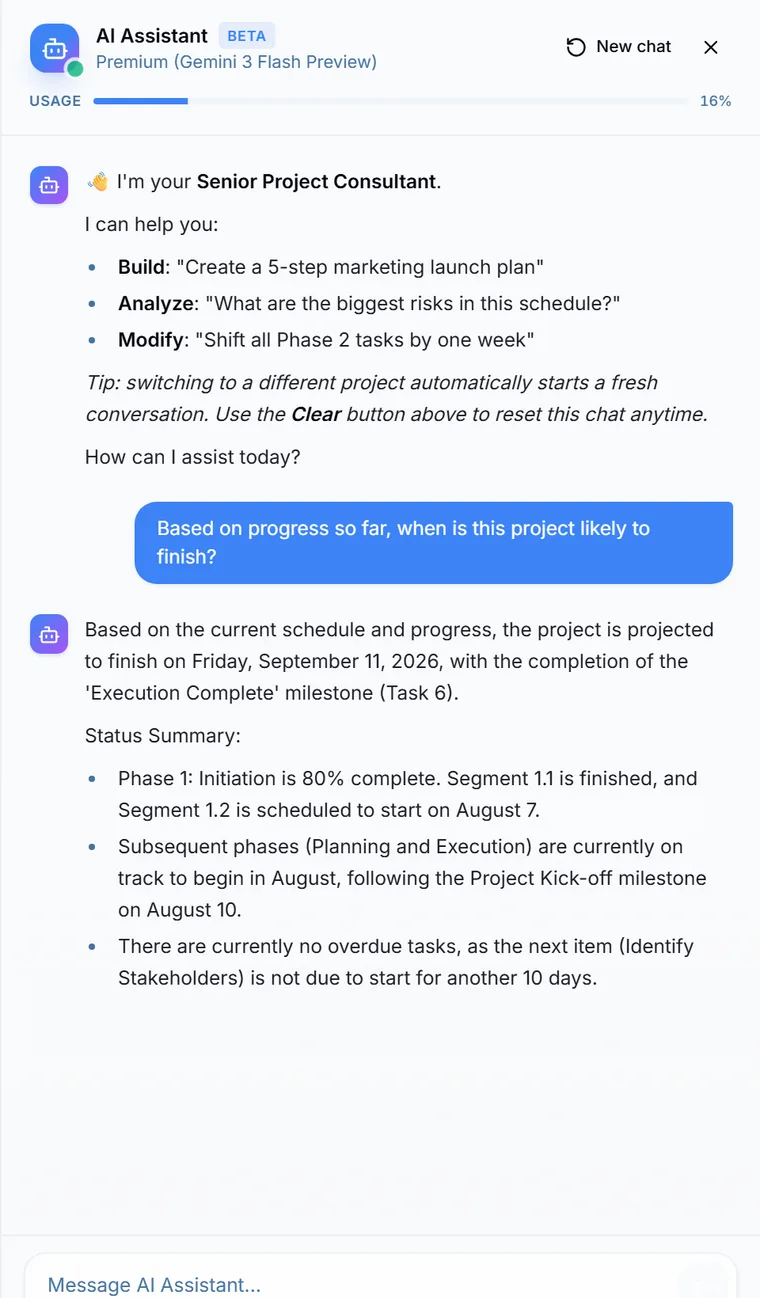
Ask for a forecast
- Click AI Chat in the toolbar to open the assistant.
- Ask a forecasting question in plain English.
Questions that work well:
- "Based on current progress, when is this project likely to finish?"
- "Which tasks are most likely to push out the finish date, and why?"
- "Give me an optimistic and a pessimistic finish date."
The forecast is the AI reasoning over your live schedule: task names, dates, progress, and dependencies, including the pace of work completed so far. There is no separate statistical engine behind it, so treat the answer as an informed reading of your plan rather than a guarantee.
Simulate a task slip
The first structured scenario models a task finishing late. Name the task and the delay, and the AI cascades the slip through your dependency chain.
- Open AI Chat.
- Ask, for example, "What happens if task 3.1 slips by 5 days?" You can refer to tasks by the outline numbers shown on the chart, like 3.1 or 2.4, or by name.
- Read the result: which downstream tasks are affected, how many days each one moves, and the new projected end date, all using your actual task names and dates.
Simulate resource unavailability
The second structured scenario models a person or team being unavailable for a period. For example: "What happens if Sam is unavailable from 1 June to 14 June?" The AI looks at the tasks assigned to that person in the window and reports what is at risk of slipping.
Two prerequisites: the person must exist in your project's resource list, and your question should name them (or mention people, teams, or assignments), because that is what brings resource data into the analysis. A project with no owners assigned cannot run this scenario meaningfully; see working with tasks for assigning owners.
Simulations never change your plan
What-if analysis is read only by design. It projects the impact of a change without touching a single date. When you decide to act on a scenario, either edit the tasks directly on the chart, or ask the AI assistant to make the change and accept it in the preview.
After you build a plan with the AI Project Wizard, the suggested prompts in chat include a what-if example about a phase slipping, which is a quick way to try the feature on a fresh plan.
Limits to know about
- No baseline comparisons. Baseline data is not sent to the chat model, so the AI cannot tell you whether you are ahead of or behind your baseline. Use baselines and variance for that.
- Task slip and resource unavailability are the two structured scenarios. Other hypotheticals get a free text answer without the same cascading calculation.
- The assistant carries only your 8 most recent messages as context, so restate the key facts in a long conversation.
- If an analysis takes longer than 30 seconds the request times out and a Retry button appears.
- The AI sometimes notes when its confidence is low, but do not rely on it always doing so. Sanity check big conclusions against the chart before sharing them.
When to use what-if
- Pre-mortems: before committing to a plan, slip the riskiest task and see how far the finish date moves.
- Stand-ups: turn "task 3.1 is running late" into a concrete downstream impact you can act on the same day.
- Resource planning: check what two weeks of leave does to the schedule before approving it.
- Stakeholder conversations: when someone asks for one more thing, simulate the delay before you agree to a date.
Easier to try than to read about.
Open Ganttastic in your browser and follow along. No account needed.