Organize and share
Portfolios
Last updated 27 July 2026
A portfolio in Ganttastic groups related projects under one name in the sidebar and shows them together on a combined timeline, one row per project. Portfolios are available on the Project Coordinator plan (up to 3) and the Project Manager plan (unlimited). Free Team Member accounts cannot create them.
A portfolio is a grouping label, not a separate workspace. Each project keeps its own tasks and settings. The portfolio files them together in the sidebar and gives you one combined overview.
Create a portfolio
- Click Create at the top of the sidebar.
- Choose Portfolio from the dropdown.
- In the Create New Portfolio dialog, type a name and click Confirm.
The new portfolio appears in the sidebar and becomes the active one. Open it before adding anything and you see a folder icon with the heading Empty Portfolio, because projects are added from the sidebar rather than from inside the portfolio.
Add projects to a portfolio
There is no add button inside the portfolio itself. Use one of these routes:
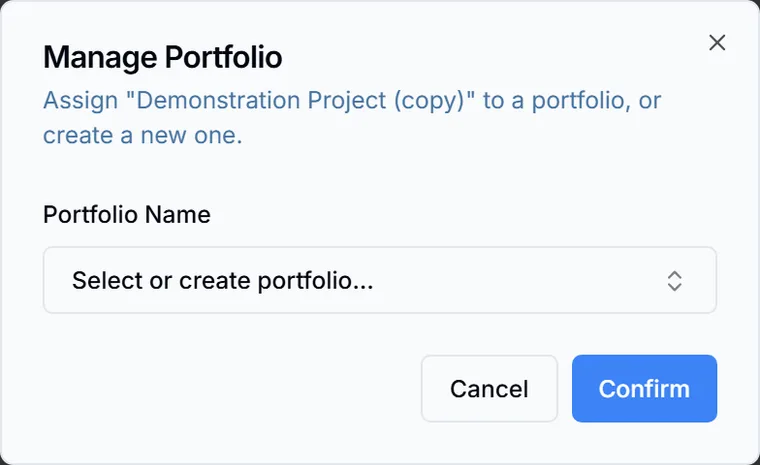
- Right-click a project in the sidebar (or click the three dots next to its name) and choose Manage Portfolio.... In the Manage Portfolio dialog, pick a portfolio from the list or create a new one, then click Confirm. The dialog moves one project at a time.
- Drag a project onto a portfolio group in the sidebar to drop it in.
- Create a new project while a portfolio is open. New projects join the active portfolio automatically.
To take a project back out, open the same Manage Portfolio... dialog and click Remove from Portfolio. The project returns to the top level of your sidebar; nothing about the project itself changes.
Read the portfolio timeline
Open a portfolio to see all of its projects on one timeline. Each project is a single aggregated bar spanning from its earliest task to its latest, with a duration in working days and a progress figure rolled up from its tasks. Double click a row to open that project.
- Switch between Gantt and List in the top control bar. The List side shows the same projects as a table.
- The portfolio timeline opens in the Current Month range. Range options work the same way as in a project; see views and navigation.
- The portfolio view is for viewing only. You cannot edit tasks here, and asking the AI to make changes prompts you to open an individual project first.
- Rows show schedule and progress only. Resource assignments and baselines live inside each project; see baselines and variance.
Share a portfolio
Right-click a portfolio and choose Share Portfolio... to invite someone to everything inside it. Ganttastic shares every project in the portfolio that you own with that person, at the role you pick. Roles work the same as sharing a single project; see share and collaborate.
- Only projects you own are included. Projects someone else owns stay untouched.
- The share happens at that moment. Projects you add to the portfolio later are not shared automatically, so share the portfolio again after adding them.
Portfolios that others share with you appear under Shared With Me in the sidebar. Right-click one there to find Leave Portfolio.
Rename, reorder, and duplicate
Drag portfolios up and down the sidebar to reorder them; the order is saved to your profile. Right-click a portfolio (or click its three dots) for Rename, Duplicate, Share Portfolio..., and Delete.
Duplicate opens a dialog with a New Portfolio Name field (prefilled with the old name plus a Copy suffix) and a Projects to Duplicate checklist with every project checked. Click Duplicate Portfolio to create the new portfolio with copies of the checked projects. The originals stay where they are.
Delete a portfolio
Deleting a portfolio can be as safe or as destructive as you make it, so read the dialog carefully.
- Right-click the portfolio and choose Delete.
- The dialog lists every project in the portfolio with a checkbox next to each. Nothing is checked to start.
- Leave a project unchecked to keep it. It stays in your account and simply leaves the portfolio.
- Check a project only if you want it permanently deleted along with the grouping.
- Type
deletein the confirmation box, then click Delete Portfolio & Projects.
Easier to try than to read about.
Open Ganttastic in your browser and follow along. No account needed.