Get started
The Ganttastic interface
Last updated 27 July 2026
The Ganttastic workspace at ganttastic.com/app has four zones: a sidebar on the left for projects, portfolios, importing, and sharing; a toolbar across the top for adding tasks, switching views, exporting, and baselines; the main workspace showing your current view; and an account menu in the sidebar header.
This page walks through each zone plus the pieces around them: the footer links, the Quick Tour, the AI usage meter, and what happens when your connection drops. If you mostly work from a phone, the mobile experience page covers the phone layout in detail.
What is in the sidebar
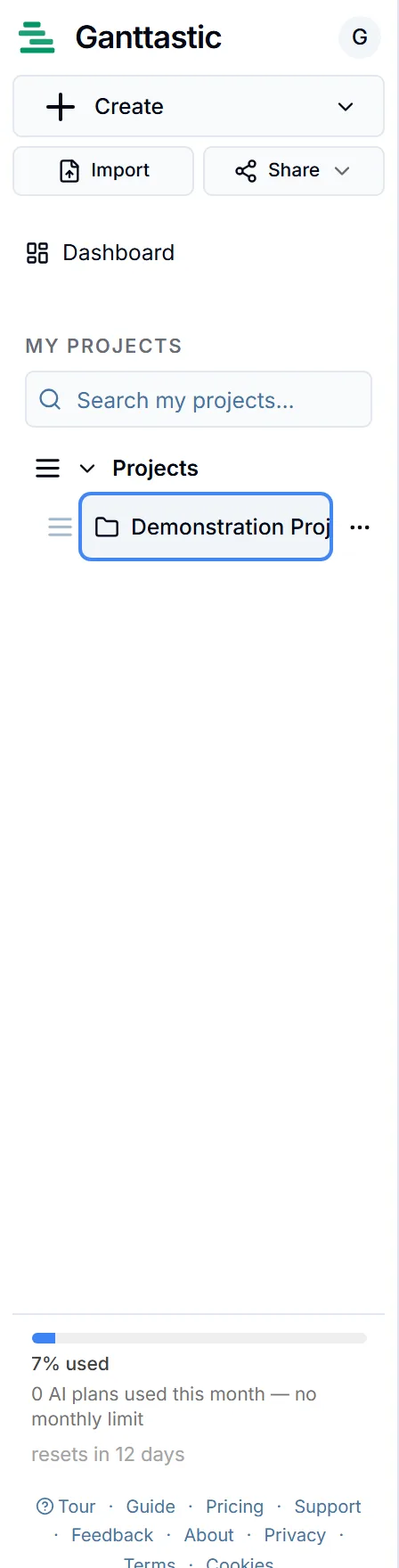
The sidebar is where you manage projects and portfolios. From top to bottom:
- Logo. Clicking the Ganttastic logo switches the workspace back to the Gantt view. It never takes you out of the app.
- Create. A dropdown with Project and Portfolio. Members of an Enterprise workspace also see New from template here, and branded Enterprise tenants show their organization's logo under the sidebar header.
- Import. Accepts .gwise and .json files directly, and walks MS Project (XML and MPP), CSV, and Excel files through an import wizard. See import a project.
- Share. A dropdown with Share Project and Share Portfolio. The button is disabled until something is selected, and Share Portfolio needs a portfolio selected. See share and collaborate.
- Dashboard or My Tasks. Project Manager accounts get a Dashboard link to the overview across projects; Team Member accounts see My Tasks in that slot instead.
- My Projects. Your project list, with a search box at the top. Click a project to open it; right-click it (or use its menu button) for Rename, Duplicate, Manage Portfolio..., Settings, Share Project..., Complete Project (or Restore Project on completed ones), and Delete Project. To rename a project, that right-click menu is where you do it: choose Rename, type the new name, and press Enter.
- Shared With Me. Projects other people shared with you, each with an Editor or Viewer badge. You can hide entries you do not need or leave a project from here.
- Completed Projects. Projects you marked complete, with their completion date. Use Restore Project to bring one back.
You can reorder projects and portfolios by dragging their grip handles, and drag a project onto a portfolio header to move it into that portfolio.
The AI usage meter
Near the bottom of the sidebar, a small meter tracks your AI allowance. Every AI feature (the AI Project Wizard, AI Chat, and forecasting) draws from one monthly token allowance per user. The size of the allowance depends on your plan; see plans and pricing.
The bar shows the percentage of this month's allowance you have used, and hovering over it shows the exact token counts. Text underneath counts down to the reset, which happens on your billing anniversary (on the free plan, on the day of the month you created your account). Past 80 percent the meter turns amber and shows an upgrade link.
The meter appears on free Team Member accounts as well as paid ones. Guests do not see it because AI features require a signed in account.
The sidebar footer links
A row of small links sits at the very bottom of the sidebar:
| Link | What it does |
|---|---|
| Tour | Restarts the Quick Tour. |
| Guide | Opens this user guide from inside the app. |
| Pricing | Opens the pricing page in a new tab. |
| Support | Starts an email to support@ganttastic.com. |
| Feedback | Opens a short feedback form. |
| About | Opens an about dialog inside the app. |
| Privacy | Opens the privacy policy dialog. |
| Terms | Opens the terms of service dialog. |
| Cookies | Reopens the cookie consent settings. |
On your first visit, Ganttastic shows a cookie banner with Accept all and Reject non-essential. Your choice is remembered, and the Cookies link is where you change it later.
The Quick Tour
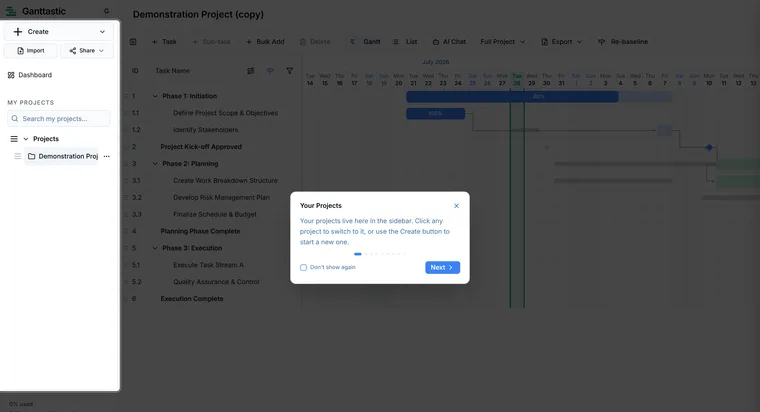
The Quick Tour is a walkthrough of nine short steps that spotlights each part of the interface in turn: Your Projects, The Gantt Chart, Add a Task, Bulk Add, Switch Views, AI Chat, Export, Set a Baseline, and a closing You're all set step.
It opens automatically the first time you sign in. You can run it again at any point from the Tour link in the sidebar footer.
What the toolbar buttons do
The toolbar runs across the top of the workspace. From left to right:
- The sidebar toggle collapses or expands the sidebar.
- Task adds a row named New Task to the project. See working with tasks.
- Sub-task adds a child under the selected task. It stays disabled until you select a task.
- Bulk Add opens a dialog for entering many tasks at once.
- Delete removes whatever is selected. The Delete key does the same.
- The Gantt and List switcher changes how the workspace shows your tasks.
- AI Chat opens the AI assistant panel.
- The view dropdown sets the visible date range: Current Week (the default), Current Month, Full Project, Calendar Year, Financial Year, and Custom Range. Choosing Custom Range reveals start and end date pickers.
- The export dropdown has Export to Image/PDF..., Export to .gwise, and Export to Excel. See export your project.
- Set Baseline snapshots the current schedule. Once a baseline exists the button reads Re-baseline and asks you to confirm before the old baseline is overwritten. Only the project owner can set one. See baselines and variance.
On a project someone shared with you, a small pill in the toolbar shows whether you are an Editor or a Viewer there.

The workspace
The large area in the middle shows your active view: the Gantt chart, the List, the Dashboard, or My Tasks. The toolbar switcher covers Gantt and List; see views and navigation for how all four views fit together.
The account area
Your avatar (your initial in a colored circle) sits in the sidebar header. Click it to open the account menu, which shows your name and current plan, then up to five entries:
- Upgrade Account appears on Team Member and Project Coordinator accounts.
- Manage billing appears on paid accounts and opens the billing portal. See billing and subscriptions.
- Manage Profile opens the Manage Your Account dialog, where you can change your first and last name, avatar color, and password, or delete your account. Your email address is shown with a verification badge but cannot be edited.
- App Settings opens the Application Settings dialog: theme, contrast, clock format, and display density (Comfortable or Compact). More in settings.
- Sign Out ends your session.
Loading states and offline behavior
While your projects load, Ganttastic shows gray skeleton placeholders in the sidebar and workspace instead of empty rows. If loading seems stuck, see troubleshooting and FAQ.
If your connection drops while you are signed in, you can keep viewing everything that is already loaded, but editing pauses: buttons such as Task are disabled, and if you try to make a change a brief message explains that you are offline. Make the change again once your connection returns.
Ganttastic on a phone
On a phone the sidebar becomes a drawer that slides in from the edge, and a bar along the bottom of the screen gives you five tabs: Projects, Tasks, Timeline, AI, and Share. A floating plus button adds tasks. The full phone layout, gestures, and limits are covered in the mobile experience.
Easier to try than to read about.
Open Ganttastic in your browser and follow along. No account needed.