Organize and share
Views and navigation
Last updated 27 July 2026
Ganttastic has four views. Gantt shows your plan as a timeline, List is built for fast editing, My Tasks rolls up tasks across your active projects on free accounts, and Dashboard summarizes every project for Project Manager and admin users. Gantt and List switch in the top control bar; the other two live in the sidebar.
This page covers what each view does, the timeline ranges you can display, and the keyboard shortcuts that move you around faster. For a tour of the overall layout, see the Ganttastic interface.
Which views you see
No plan shows all four views. Gantt and List are always available and switch in the top control bar. My Tasks and Dashboard are sidebar entries tied to your plan.
| Plan | Views |
|---|---|
| Team Member (free) | Gantt, List, My Tasks |
| Project Coordinator | Gantt, List |
| Project Manager (and admins) | Gantt, List, Dashboard |
See plans and pricing for what else each tier includes.
The Gantt view
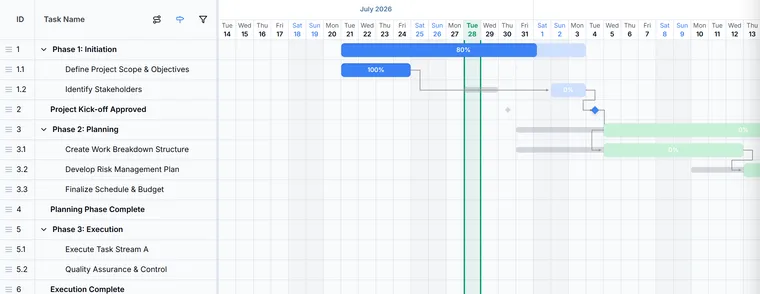
The Gantt view draws each task as a horizontal bar on a timeline. Bar length shows duration, bars are color coded, and arrows connect tasks that depend on each other (see dependencies, milestones, and auto-scheduling).
- Click a task once to select it. Hold Ctrl (Cmd on Mac) and click to select several tasks at once.
- Double click a task to open the Task Details panel, where you edit everything about it.
- Drag a bar left or right to shift its dates. Drag either end of a bar to change its start or finish.
- Click the chevron next to a parent task to expand or collapse its sub-tasks.
- Right-click a task to open the context menu.
- Click the funnel icon in the header to open Filter Tasks, which shows or hides task rows. Use Select All, Select None, or tick individual tasks.
The task table on the left is resizable: drag the divider between the table and the chart. When your project has a baseline, a toggle in the Gantt header shows or hides the baseline bars (see baselines and variance).
Find today and move around
An emerald marker highlights today on the timeline: the current day's column is tinted and bracketed in green, and its column header is tinted to match. The marker is deliberately not red, so it never blends into overdue coloring.
Scroll horizontally to move through time and vertically to move through tasks. When the chart is wider than your screen, a draggable scrubber appears so you can pan the timeline quickly by dragging it.
Timeline ranges
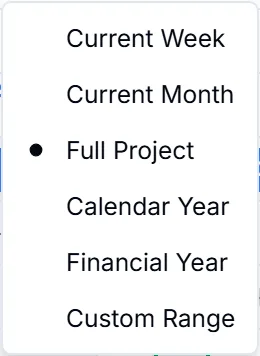
The View dropdown in the toolbar controls how much time the Gantt displays. The button shows the name of the current range.
| Range | What it shows | Plans |
|---|---|---|
| Current Week | Day columns for this week, honoring your project's first day of the week | All plans |
| Current Month | Day columns for this month | All plans |
| Full Project | The entire project span with a week of padding on each side | Project Manager and above |
| Calendar Year | January to December in month columns | Project Coordinator and above |
| Financial Year | 1 July to 30 June in month columns | Project Manager and above |
| Custom Range | Any start and end dates you pick from two calendar pickers | Project Manager and above |
New projects on the free and Project Coordinator plans open in Current Month. Projects created on the Project Manager plan open in Full Project.
The List view
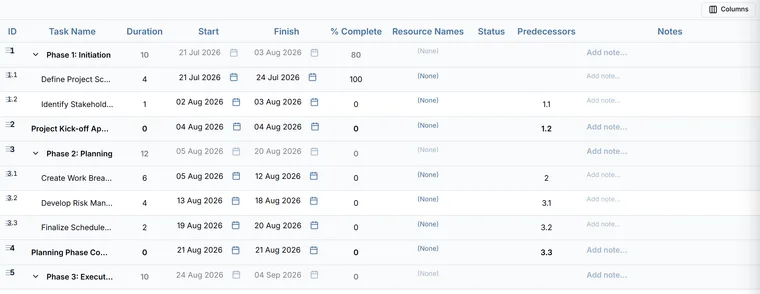
The List view shows your tasks as rows in a table and is the fastest place for data entry and quick edits. Rows are hierarchical: parent tasks carry a chevron to expand or collapse the sub-tasks nested beneath them, and you can drag rows to reorder tasks.
The default columns are ID, Task Name, Duration, Start, Finish, % Complete, Resource Names, Status, Predecessors, and Notes. Click any cell except ID to edit it in place.
- Click Columns to open the Visible Columns menu and choose which columns appear. ID and Task Name always stay visible, and your choices are saved with the project.
- Bulk Add sits in the top control bar, so you can add tasks in batches from either the List or the Gantt view. See working with tasks.
The My Tasks view
On the free Team Member plan, My Tasks appears in the sidebar. It gathers the tasks from your active projects into one list so you can update progress without opening each project.
- Pending tasks are sorted with overdue items first, then tasks due soon, then everything else by end date.
- Quick stat dots at the top count how many tasks are overdue, due soon, and done.
- Each card shows the task's dates and duration plus an Overdue, Due soon, or Done badge.
- Drag the slider on a card to set progress; it moves in steps of 5 percent.
- Completed tasks collapse into their own section, which you can expand when you want to review them.
When nothing is pending, the view shows an all caught up message.
The Dashboard view
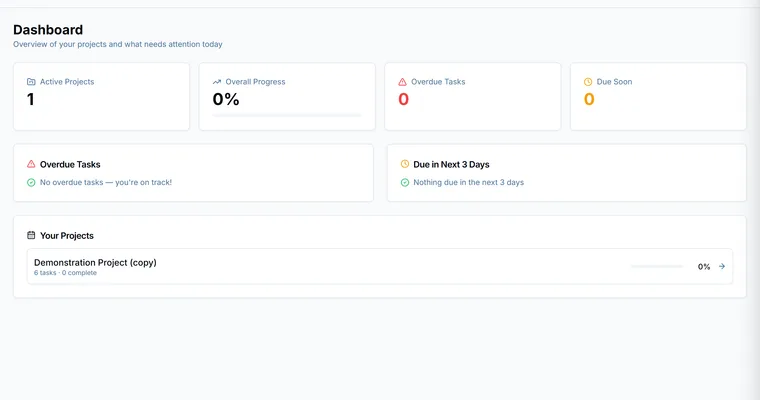
Project Manager and admin users get a Dashboard entry in the sidebar. It is a full page summary across every project you can access, with four cards at the top:
- Active Projects: how many projects are in flight.
- Due in Next 3 Days: tasks coming due, each row showing the task, its project, and a date badge. Click a row to jump to it.
- Overdue Tasks: what has slipped, or a green all clear message when nothing is overdue.
- Overall Progress: a completion percentage with a progress bar across your work.
Below the cards, Your Projects lists each project with its task count, a progress bar, and its completion percentage. Click a project to open it. Sample and completed projects are left out of the counts.
Keyboard shortcuts
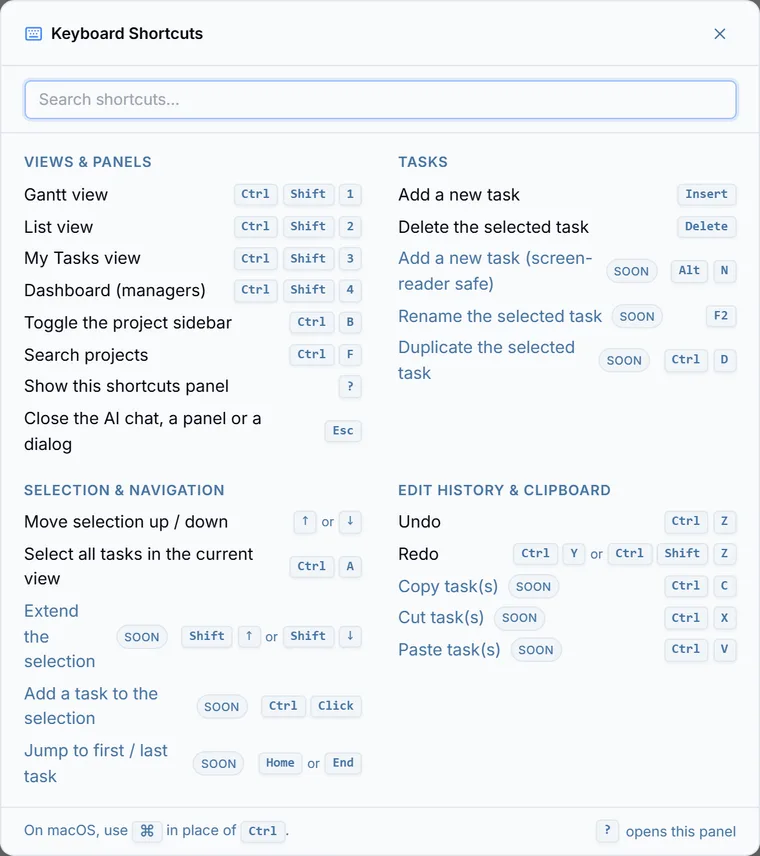
These shortcuts work while you are not typing in a text field. Press ? at any time to open the shortcuts overlay and see the same list in the app.
| Shortcut | Action |
|---|---|
Ctrl/Cmd+Shift+1 | Switch to the Gantt view |
Ctrl/Cmd+Shift+2 | Switch to the List view |
Ctrl/Cmd+Shift+3 | Switch to My Tasks |
Ctrl/Cmd+Shift+4 | Switch to the Dashboard (Project Manager and admin) |
Ctrl/Cmd+F | Jump to the project search box |
Ctrl/Cmd+A | Select all tasks (Gantt and List views) |
Insert | Add a task |
Delete | Delete the selected tasks |
Ctrl+Z / Ctrl+Y | Undo / redo |
Ctrl+B | Show or hide the sidebar |
? | Open the shortcuts overlay |
Insert and Delete only fire when you have edit access to the open project.
Easier to try than to read about.
Open Ganttastic in your browser and follow along. No account needed.