Get started
Ganttastic on mobile
Last updated 27 July 2026
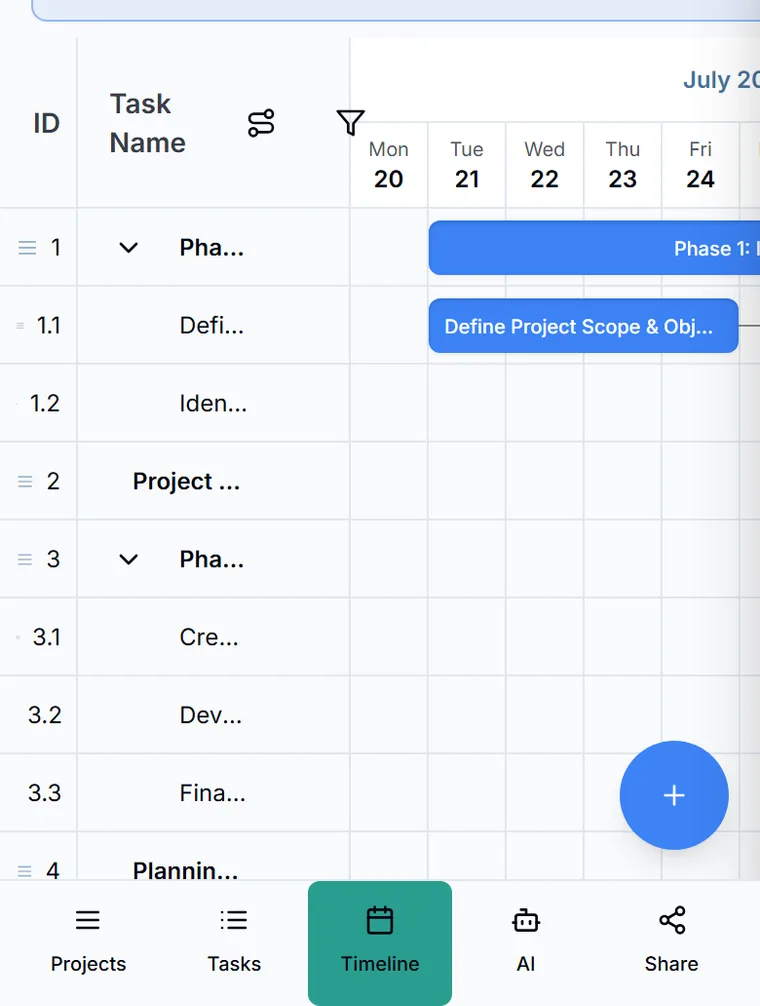
Ganttastic runs in your phone or tablet browser with nothing to install. Sign in at ganttastic.com, and the app switches to a touch layout: a five tab bottom navigation bar, a floating button for adding tasks, and a full width Task Details sheet. You can view loaded projects offline, but editing needs a connection.
Your account, projects, and plan limits are the same as on desktop. This page covers what the touch layout changes and how common actions work on a small screen.
Open Ganttastic on your phone
Open your phone or tablet browser, go to ganttastic.com, and sign in. There is no separate app to download. On small screens the interface swaps to a touch layout with larger controls, and everything you change syncs live with your other devices.
The bottom navigation bar
A five tab bar sits at the bottom of the screen:
- Projects opens a Switch Project list of your projects, plus a + New Project item for creating one.
- Tasks shows the open project as a list of task cards. Each card has a menu with Edit, Add Sub-task, Duplicate, and Delete; see working with tasks.
- Timeline is the Gantt chart, and it is the default view when a project opens.
- AI opens the AI Assistant panel; the tab is disabled until a project is open. See the AI assistant.
- Share opens sharing options for the current project. It is disabled when you only have viewer access.
The sidebar is still available: tap the menu icon at the top left to slide it out. It holds the full project list, the per project menus, and your account menu.
Add tasks and projects
The floating + button at the bottom right always adds a task to the open project. It never creates a project.
- To add a task: open a project and tap the floating + button.
- To create a project: tap Projects in the bottom bar, then + New Project.
What changes on a small screen
- The sidebar collapses into a slide out drawer behind the top left menu icon.
- Task Details opens as a sheet that covers the full width of the screen instead of a side panel.
- The timeline hides non-working days to save horizontal space, so dates jump straight over weekends and holidays.
- A mobile only scrubber bar lets you pan quickly across the timeline.
- In portrait, a tip suggests rotating to landscape, which fits far more of the timeline on screen.
Reschedule a task on touch
On desktop you can drag a bar to new dates. On touch screens, dragging pans the chart instead, so rescheduling goes through the Task Details sheet:
- Open the Tasks tab and find the task, or tap its bar on the timeline to select it.
- Open Task Details; from a task card, use the card menu and choose Edit.
- Change the start or end date in the sheet, then close it.
Dependency rules apply the same way as on desktop; see dependencies, milestones, and auto-scheduling.
What works offline
When your connection drops, an Offline badge appears in the header and a banner says "You're working offline". You can keep viewing any project that is already loaded: scroll the timeline, open task details, and switch views.
Editing is blocked while offline. Trying to add or change a task shows a toast asking you to reconnect, and AI features are unavailable. When the connection returns, a "Back online" toast appears and editing resumes. Nothing is queued while you are offline, so wait until you are reconnected to make changes.
Add Ganttastic to your home screen
Ganttastic is a progressive web app, so you can pin it to your home screen and open it like a native app:
- On iPhone or iPad: in Safari, tap the Share icon, then Add to Home Screen.
- On Android: in Chrome, open the browser menu, then Add to Home screen.
The pinned app opens in its own window without the browser address bar.
Easier to try than to read about.
Open Ganttastic in your browser and follow along. No account needed.