Organize and share
Share and collaborate
Last updated 27 July 2026
You can share a Ganttastic project in two ways. Invite specific people by email and give each one a Viewer or Editor role, or create a public link that anyone can open in a browser with no account. Invited collaborators see changes in real time, and only the project owner controls who has access.
Projects are private by default. Nothing is visible to anyone else until you invite them or create a link, and you can withdraw either kind of access at any time.
Owner, editor, and viewer roles
Every person on a project has one of three roles. The owner is the person who created the project. Everyone else is invited as a Viewer or an Editor.
| What you can do | Owner | Editor | Viewer |
|---|---|---|---|
| View the full plan | Yes | Yes | Yes |
| Edit tasks, dates, and resources | Yes | Yes | No |
| Invite people, change roles, remove access | Yes | No | No |
| Set or clear the baseline | Yes | No | No |
| Create or revoke public share links | Yes | No | No |
| Delete the project | Yes | No | No |
Editors can open the Share dialog to see who has access, but the dialog tells them that only project owners can invite collaborators. Capturing or clearing a baseline is also reserved for the owner, which matters when you track progress against the original plan (see baselines and variance).
Exporting is not tied to your role. Any collaborator can export the project, and the formats available follow that person's own plan, not the owner's. See export your project for the format list.
Invite someone to your project
- Open the project, then click Share in the sidebar and choose Share Project. (Share Portfolio sits in the same menu and is available only while a portfolio is active.)
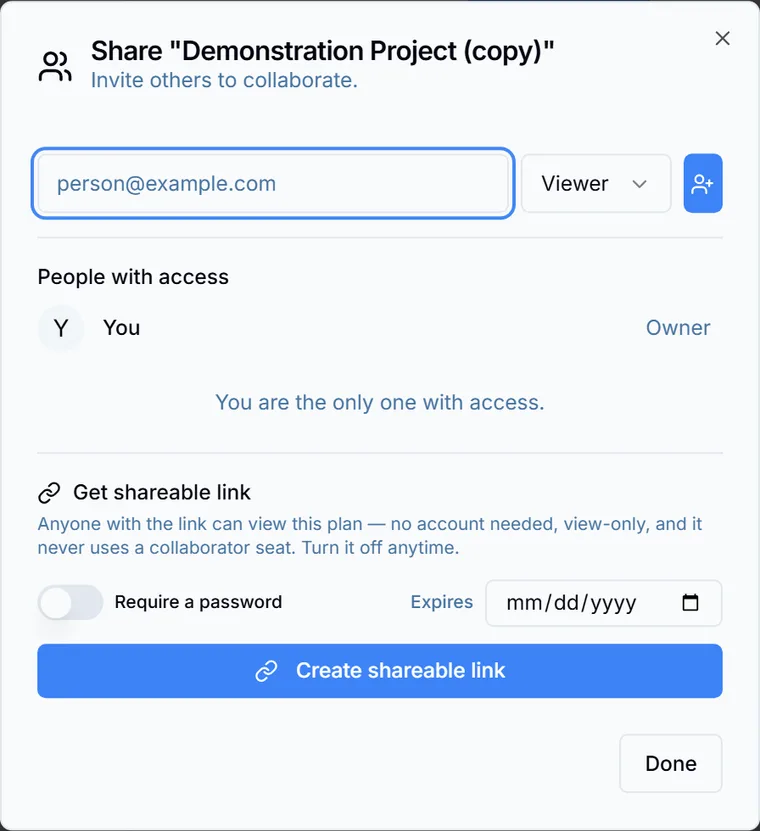
- In the dialog, subtitled "Invite others to collaborate.", type the person's email address into the field marked
person@example.com. - Pick a role, Viewer or Editor, from the dropdown next to the address.
- Click the add button (the icon button with a person symbol next to the role dropdown).
If the address belongs to an existing Ganttastic account, access is granted instantly and a "Project Shared" toast confirms it. Ganttastic does not email the person, so let them know yourself. The project appears for them under Shared With Me in their sidebar, with a role badge on the row.
The People with access list in the same dialog shows everyone on the project, including you as Owner. Click Done to close the dialog.
Sharing with someone who has no account yet
Sharing works by matching the email address to a Ganttastic account. If no account exists for the address, the dialog tells you that the address isn't on Ganttastic yet and offers a Send invitation email button.
That email only invites the person to create a free account. It does not grant access to your project. Once they have signed up, open the Share dialog and add their address again to give them access.
If someone only needs to see the plan, a public share link is faster: no account is required at all.
Editor invites and collaborator limits
Your own plan (the owner's plan) sets how many people you can add to each project and controls the option to invite editors. The plan of the person you invite does not matter: someone on the free plan can still edit a project shared with them as an Editor.
| Plan | Collaborators per project | Editor invites |
|---|---|---|
| Team Member (free) | 2 | Viewers only |
| Project Coordinator | 5 | Yes |
| Project Manager | Unlimited | Yes |
The Share dialog warns you as you approach the limit: an amber notice appears when a project reaches about 80 percent of its collaborator allowance, and a red notice with an upgrade option appears once the limit is reached.
Share a public link (no account needed)
A public share link lets anyone view your plan in a browser. People opening the link do not need a Ganttastic account, the link is always view only, and link viewers never count against your collaborator limit. Only the project owner can create or revoke links, and links are available on every plan.
- Open the Share dialog and find the Get shareable link section.
- Optionally turn on Require a password and set one (at least 4 characters).
- Optionally set an Expires date. Leave it empty and the link never expires.
- Click Create shareable link. The URL is copied to your clipboard automatically.
Link viewers see a trimmed version of the project. The Gantt chart is fully visible, including progress and any baseline markers, and viewers can expand and collapse task groups. Assignee names and task notes are removed before the page is served, so people outside your team never see who is doing the work or what your internal notes say.
Each active link is listed in the same section with its creation date, a lock icon when a password is set, and its expiry. Click Turn off next to a link to revoke it. Revoked links stop working immediately.
Manage access or leave a project
To manage access later, reopen the Share dialog. As the owner you can change anyone's role with the dropdown next to their name, or remove them with the X button on their row. A "Permissions updated" toast confirms each change, and it applies for that person right away.
If a project has been shared with you and you no longer want it, right-click the project in the sidebar and choose Leave Project (the same option is in the project row menu). You lose access immediately and the owner is not notified. Owners cannot leave their own project; delete it instead.
Collaboration happens in real time
Ganttastic keeps everyone's view live. When an editor moves a task or updates progress, the change appears for every other person in the project without a refresh. Role changes and removals apply the same way.
When you open a project you do not own, a small pill in the top toolbar shows your role (Viewer or Editor) so you always know what you can change. For what editing looks like day to day, see working with tasks.
Frequently asked questions
Easier to try than to read about.
Open Ganttastic in your browser and follow along. No account needed.